|
CREATING FLASH MX ANALOG CLOCK |
||||
| OVERVIEW | ||||
|
In this tutorial we will create an analog clock using Flash. Here are some examples of what can be created by following the tutorial. This tutorial uses a variation of the technique explained in Flash 4 Clock with JavaScript. This time, however, we will not be using JavaScript; instead, we will be using the Date object introduced in Flash 5. This project will be fairly easy to do. Most of the work will be on creating the graphics and the movie. The scripting portion is minimal and quite straightforward. This tutorial is intended for Flash MX or newer (but can be adapted for Flash 5 also). Let us begin. |
||||
| Creating the Movie | ||||
Before you start, open up the Info panel (Windows->Design Panel->Info), and make sure the alignment grid is set like below:
|
||||
| CREATING THE TICK MARKERS | ||||
|
On the frame 1 of the TickMakers layer, draw a vertical
line. Draw it near the center of the stage, and make sure it's actually
a straight line (not slanted). Center the line on the stage using the
Shape Property dialog. To do that, with the line selected, open the
Shape Property dialog:
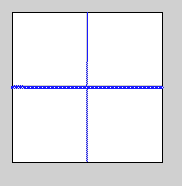
Set the height of the line to the same height as the movie (150), and move the line to the center by setting X to 75 and Y to 0. Now we need to duplicate this line. With the line still selected,
copy it, then do You now have 2 lines, although it seems that there's only one because the newly copied line is overlapping right above the original line. With the new line still selected, select Modify->Transform->Rotate 90º
CW (if you had accidentally unselected the line, just click on it once
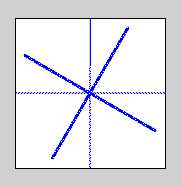
to select it). Now we have 2 lines, crossing each other. Save the project. Select everything (do Edit->Select All). We want to copy the 2 lines, paste and rotate them. Do Edit->Copy,
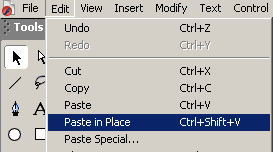
then Edit->PasteInPlace. The newly copied lines are
pasted on top of the old lines. Do not unselect the newly copied lines
(if you accidentally unselected them, reload the saved project and redo
this process.)
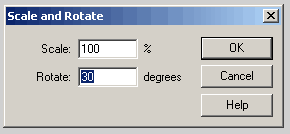
Enter 30 as the rotation angles, and you should then get this:
We want to keep doing this copy-paste-rotate steps to add markers around the clock outlines. For now, save the project first. Do Edit->PasteInPlace again.
Do not unselect the newly copied lines (if you accidentally unselected them,
reload the save project.)
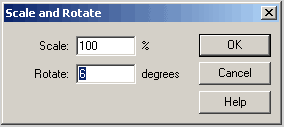
Save the project. Select everything (Do Edit->Select All), then Edit->Copy, then Edit->PasteInPlace. Do not unselect the newly copied lines (if you accidentally unselected them, reload the save project.) Do Menu->Modify->Transform->Scale and Rotate...
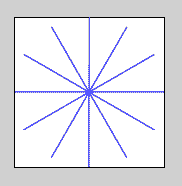
Enter 6 as the rotation angles and you should get this:
Do Edit->PasteInPlace and Menu->Modify->Transform->Scale and
Rotate... again three more times. Use rotation angles: 12, 18,
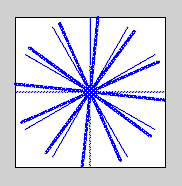
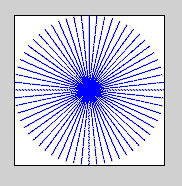
and 24. You should get something like this: Since there're 60 seconds per rotation (ie: 60 seconds per minute), each tick is (360 degrees/60) = 6 degrees. That's where the numbers 6, 12, 18, and 24 come from.) Save the project. Create a new layer on top of the TickMarkers layer.
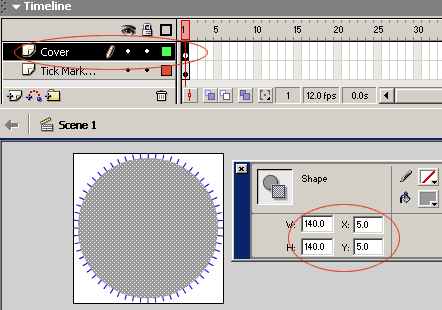
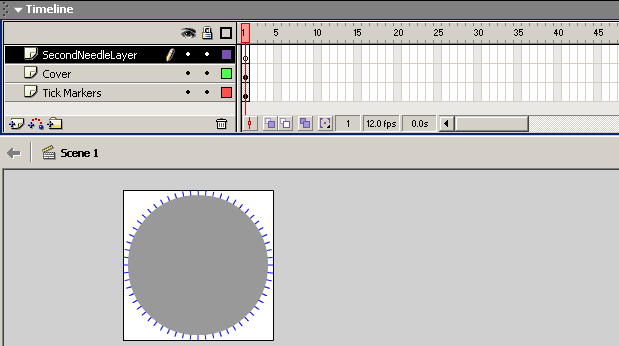
Name the layer: Cover. Draw a circle and using the object
property, position the circle so it covers the inner portion of the movie,
covering the lines. You can set the width and height of the circle to anything you like. The point is that we want a small portion of the lines to show through as ticks. Here I set the diameter of the circle to 140. The dimension of the movie is 150x150 pixels, so that makes the circle 10 pixels less than the dimension of the movie. To center that circle, I moved it halfway of the 10 pixels difference, which is 5 pixels. |
||||
| Creating the Needle | ||||
|
A clock has 3 needles: for "seconds", for
"minutes", and for "hours". For now, let's make the "seconds"
needle.
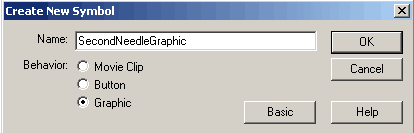
Do Insert->New Symbol. Name it SecondNeedleGraphic,
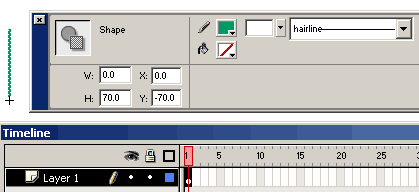
set the Behavior to Graphic. Draw a straight vertical line on frame 1, layer 1. Set the property
like this:
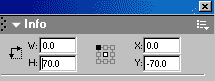
My line is in green, notice that I use 70 as the height of the line. That makes the line half of the movie dimension minus 5 pixels. Set X to 0 to make it centered. Set Y to -70 so that the end line falls on the origin the the movie clip (the origin is the plus like sign). This is so that we can rotate the needle easily using Motion Tween. If the line does not appear to be entered, the alignment setting might have been set wrong (see Creating the Movie section above). Correct it by opening up the Info panel (Windows->Design Panel->Info), and make sure the alignment grid is set like below:
|
||||
| Rotating the Needle | ||||
|
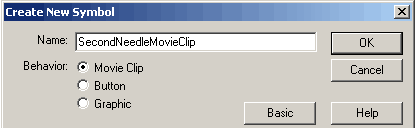
Do Insert->New Symbol. Name it SecondNeedeMovieClip, and set the Behavior to Movie Clip.
You should be in the editing mode of the SecondNeedleMovieClip
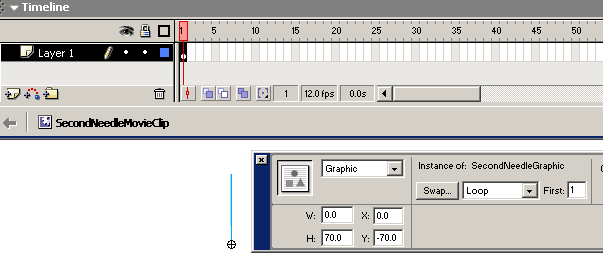
symbol. Drag an instance of SecondNeedleGraphic
onto the stage. Position it so that the origin of the line is at the center
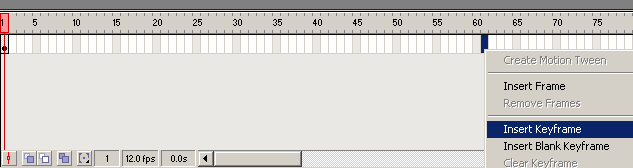
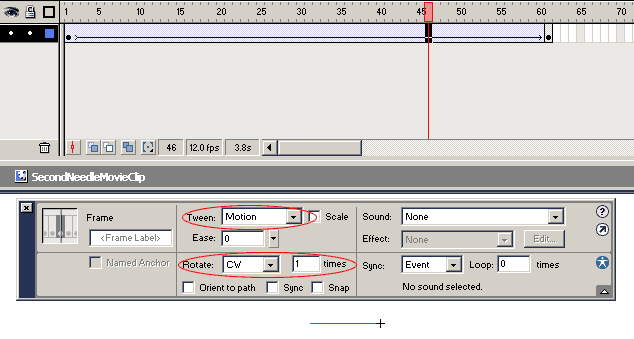
point of the movie clip by using the Object property dialog. Set H (height) to 70 (or whatever height you use for the line). Set X to 0, and Y to -70 (the negative value of the height). By doing that, the endpoint of the line should fall on the origin the the movie clip. We need to create 60 frames of this needle, each frame will represent every different position for the needle rotation (there are 60 seconds per rotation). We can do the same technique we use to create the tick markers by rotating the needle manually on each of the 60 frames, but there's much easier and more effective way: using Motion Tween. You should still be in the editing mode of the
SecondNeedleMovieClip symbol. Select frame 61 and do Insert
Keyframe. A key frame should be inserted at frame 61. Now click on frame 46 and bring up the Frame Property dialog. In the dialog box, set Tween to: Motion, and set Rotate to CW (clockwise).
|
||||
| Putting the needle | ||||
|
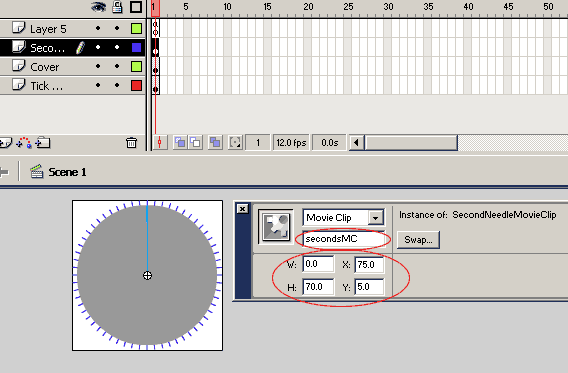
Go back to the main scene (Scene 1) and create a new layer, name
it: SecondNeedleLayer. Drag an instance of SecondNeedleMovieClip onto the stage onto the
new layer. Position it so that the needle axis is centered on the stage
(if you followed me so far, this will be as simple as setting X to
75 and Y to 5. Name the instance: secondsMC.
Test the movie. The needle should rotate like this.
|
||||
|
<<NEXT
PAGE>>
|
||||