
FLASH MX: CREATING A QUIZ APPLICATION USING XML
ALLOWING THE USER TO CLICK THE ANSWERS
|
|
|
|
FLASH MX: CREATING A QUIZ APPLICATION USING XML |
|
|
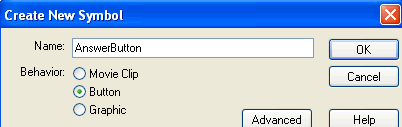
In that symbol's Hit state, just draw a filled rectangle. Make the rectangle as big as the space you allocated for each answer. Leave the other states blank.
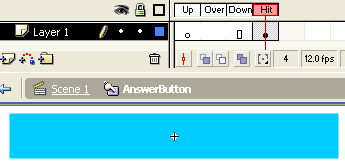
Now, go back to the frame labeled ShowQuiz again. This time, we will be adding the buttons on top of the answer textboxes. First, make a key frame on the Button layer, then put the 4 buttons over the answer text areas like below. (You can resize the buttons if they're too small or too large.)
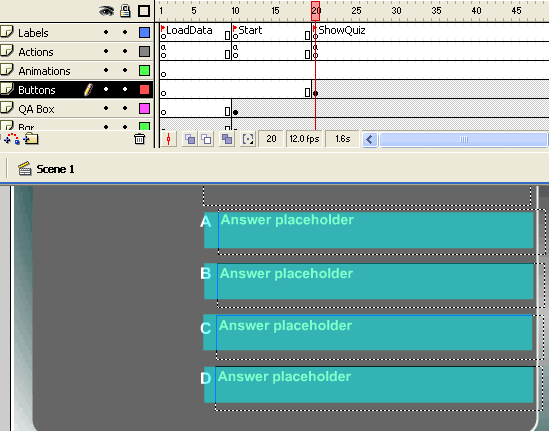
If you test the movie how, you should see the cursor changes into a hand whenever it is over one of the buttons. If you click the button though, nothing will happen because we have not tell Flash what to do when the buttons are clicked.
CHECKING THE ANSWER
Whenever user clicks a button, we need to check if the user
has clicked the correct answer or a wrong answer. Basically, we
need to compare the index of the button against the index of the correct
answer.
We can do that easily by calling the function checkAnswerNumber. What does checkAnswerNumber(answerIndex) function do? The function checkAnswerNumber(answerIndex) was created in the LOADING QUIZ DATA section (on the previous page), you can take a look at the function again below.
function QuizItem(question)
{
  // see previous page for complete code, I have removed
  // irrelevant parts here
  this.checkAnswerNumber=function(userAnswerNumber)
  {
    if (userAnswerNumber==this.getCorrectAnswerNumber())
      gotoAndPlay("Correct");
    else
      gotoAndPlay("Wrong");
  }
}
|
It compares the answer given by the user with the correct answer. If they match, the movie to jump to a frame labeled "Correct." If they don't match, then the code will cause the movie to jump to a frame labeled: "Wrong."
Since, we can associate an action to a button, that is a perfect time to do the check. So let's do it. Associate the following action with the first button:
on (release) {
	if (!hasAnswered)
	  	currentQuizItem.checkAnswerNumber(0);
	hasAnswered=true;
}
|
Basically, that code says: "Here, I clicked button number 0, is answer 0 the correct answer or not?"
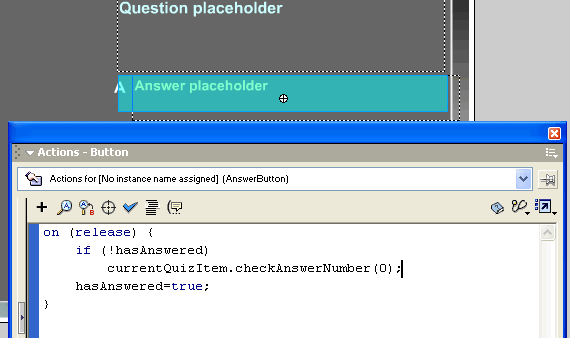
That piece of code will be executed whenever the user "clicks then releases" the button. For the first button, we pass the number 0 because we want to check whether the first answer (ie: the 0th answer) is the correct answer or not. (Note: in Flash, like most programming languages, an index starts at 0, not 1). The code also sets a variable named hasAnswered to true. This variable is used to indicate that the user has clicked an answer and should not be allowed to click again. (If you do allow user to click multiple times, the movie might produce unpredictable behavior.)
Add the same code to the other 3 buttons, however, we need to change the number 0 with the index for each answer button (use 1 for the button over answer B, 2 for the button over answer C, and 3 for the button over answer D). Hence, the last button will have the following action:
on (release) {
	if (!hasAnswered)
	  	currentQuizItem.checkAnswerNumber(3);
	hasAnswered=true;
}
|
HANDLING CORRECT ANSWERS
As mentioned above, if the user clicks the correct answer
button, the function checkAnswerNumber will cause the Flash
movie to jump to a frame labeled "Correct." Let's
create that frame now.
Create a key frame at frame 30 or so, then in the Labels layer, label the frame "Correct." Also make a key frame on the Animations layer.
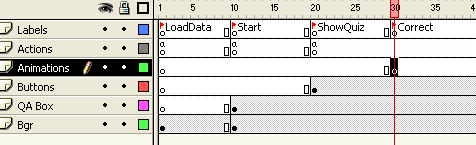
This frame will be shown whenever the user clicks a correct answer. You can display some kind of animation or graphics here. For this example, I'll just put up a congratulatory word.
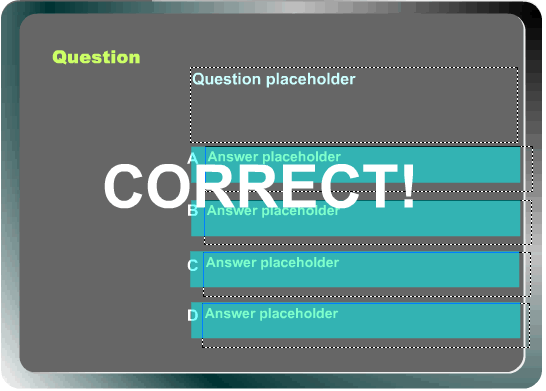
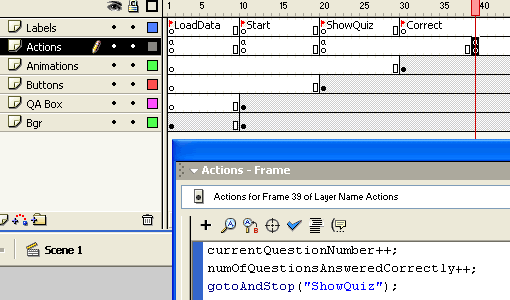
We need to decide how long this message should stay on the screen before we go to the next quiz item. Let's say I want it to stay for 10 frames (about 0.7 seconds). That means I need to make a key frame at frame 39, and tell Flash to go back the quiz screen to show the next question (ie: jump back to the frame labeled ShowQuiz). Here's the code that does that.
currentQuestionNumber++;
numOfQuestionsAnsweredCorrectly++;
gotoAndStop("ShowQuiz");
|
Before jumping back to the quiz screen, the code increments the question number (currentQuestionNumber) so that the quiz screen will show the next question instead of the same question again. It also increments another variable (numOfQuestionsAnsweredCorrectly) that counts how many questions have been answered correctly.
Test the movie now, but click the correct answer. It should show the congratrulary screen for a while, then it will show the next quiz.
HANDLING WRONG ANSWERS
This part is very similar to the previous section
above. If the user clicks one of the wrong answers, the function checkAnswerNumber will cause the Flash
movie to jump to a frame labeled "Wrong." Let's
create that frame now.
Create a key frame at frame 40 or so (make sure this frame is not overlapping the last frame created in the previous step), then in the Labels layer, label the frame "Wrong." Also make a key frame on the Animations layer. This frame will be shown whenever the user clicks a wrong answer. You can display some kind of animation or graphics here. For this example, I'll just put up some message.
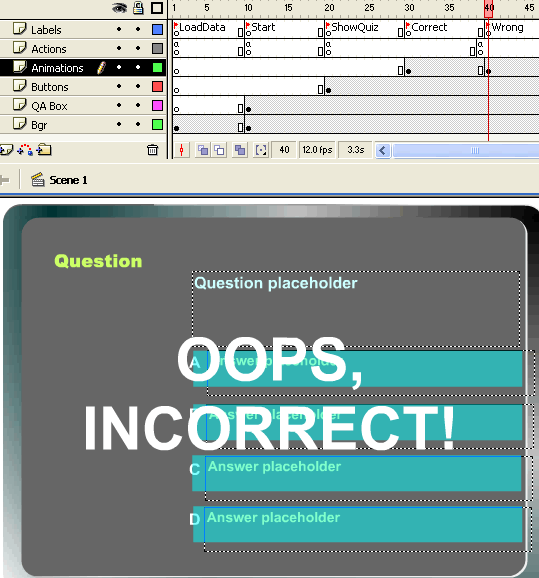
We need to decide how long this message should stay before we go to the next question. Let's say I want it to stay for 10 frames. That means I need to make a key frame at frame 49, and tell Flash to go back the quiz screen (ie: jump back to the frame labeled ShowQuiz). Here's the code that does that.
currentQuestionNumber++;
numOfQuestionsAnsweredIncorrectly++;
gotoAndStop("ShowQuiz");
|
Before jumping back to the quiz screen, the code increments the question number (currentQuestionNumber) so that the quiz screen will show the next question instead of the same question again. It also increments another variable (numOfQuestionsAnsweredIncorrectly) that counts how many questions have been answered incorrectly.
Alternatively, you can remove the first 2 lines to force the user to repeat the question until they click the right answer.
<<NEXT
PAGE>>
<<MORE
TUTORIALS>>
(C) 2002 F. Permadi
Terms
of Use